May 1, 2026
Working with Existing Fusion Documents
Send parts from Fusion to Toolpath, then bring the generated CAM back into the same Fusion document
Use this workflow when you already have CAM setups in Fusion and want Toolpath to program within those setup orientations. You will create or select setups in Fusion, send those setups to Toolpath, let Toolpath generate CAM, then export the CAM back into the same Fusion document and setup(s).
For the general Toolpath-to-Fusion export flow, including exporting to a new Fusion document, see How to Export Toolpath CAM to Fusion.
When to use Existing Setups
Existing Setups sends selected Fusion CAM setups to Toolpath. Toolpath uses the setup orientation, model selection, fixture selection, and stock information from the setups you send. When you export CAM back into the same Fusion document, Toolpath populates those setup(s).
Important: Existing Setups mode constrains Toolpath to the setup orientations you provide. If a feature is not reachable from those orientations, Toolpath will not machine it. Use Existing Setups when you want to control the exact machining orientations and order. If you want Toolpath to determine setup orientation and workholding, send a Model Body instead.
Send existing Fusion setups
-
Open the Fusion document that contains the part and setups.
-
Confirm the setups have the correct WCS orientation, model selection, fixture selection, and stock definition.
-
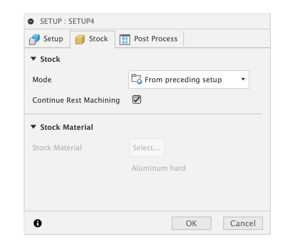
For secondary setups, use From Preceding Setup as the stock mode when appropriate.
-
Open the Toolpath Add-In and choose Send Part to Toolpath.
-
Under Send to Toolpath as, choose Existing Setups.
-
Under Available Setups, select the setup(s) Toolpath should use.
-
Choose the setup Type, Project, and Cut Config.
-
Click Export Part.
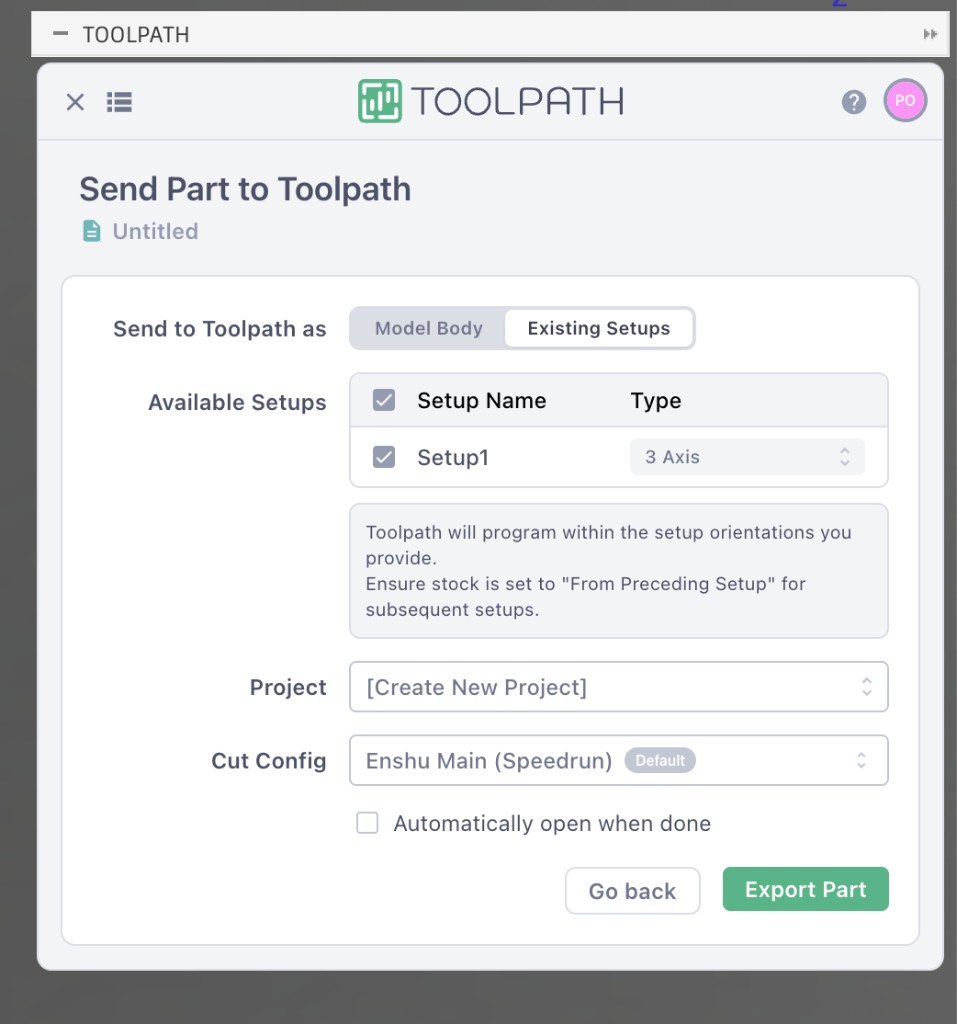
Toolpath will program only within the selected setup orientations. If you send more than one setup, Toolpath uses the order of the selected setups when planning the CAM program.
Bring Toolpath CAM back into the same Fusion document
After Toolpath finishes generating CAM, export the program back to Fusion:
- Open the part in Toolpath.
- Click Export to Fusion in the upper-right corner.
- In the Export to Fusion window, open the Export into dropdown.
- Select the Fusion document you originally sent to Toolpath. If Toolpath detects the source document, it may be selected automatically.
- Click Export.
- Open Fusion to continue. The Toolpath Add-In imports the generated setups and machining operations into the selected document.
Because you sent Existing Setups, exporting back into the same Fusion document populates the setup(s) you sent to Toolpath.
You can also check Automatically open when done in the Toolpath Add-In before sending the part. Choose Fusion as the Open in destination if you want the generated CAM to return to Fusion automatically when Toolpath finishes processing.
If Toolpath cannot connect to Fusion during export, make sure Fusion is open and that the Toolpath Add-In is running and logged in. Then click Retry connection in the Export to Fusion window.