March 24, 2026
How to control stock for use in Toolpath
There are several ways to control stock settings in Toolpath and in Fusion to get what you need. This article describes what all of the options are.
In Toolpath:
Stock mode: Accessible in Overview
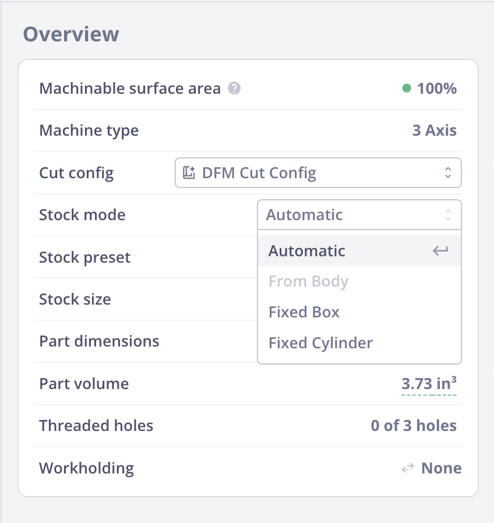
Automatic- offsets model geometry based on your Stock Preset
From Body- allows selection of geometry in the uploaded file
Fixed Box- allows designation for XYZ dimensions
Fixed Cylinder- allows designation of diameter and length of a cylinder
From Fusion:
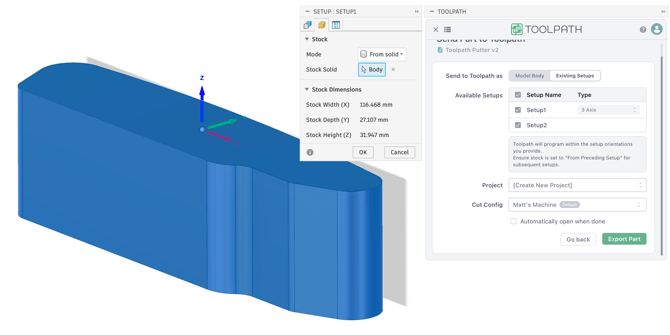
_In Setup:_StockFrom Body
When choosing Mode: From Solid and selecting your Stock Body in a Fusion setup you can send that setup directly to Toolpath. Toolpath will also program within the setup orientations you provide. Ensure stock is set to "From Preceding Setup" for subsequent setups.
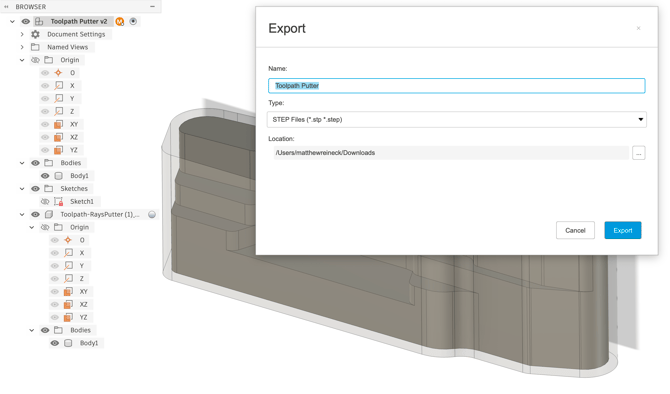
 __Multiple Bodies in a .step file:
If you export a .step file with multiple bodies shown in your Fusion feature tree, when this part gets uploaded to Toolpath, the body will be selectable in under From Body in Stock Mode.
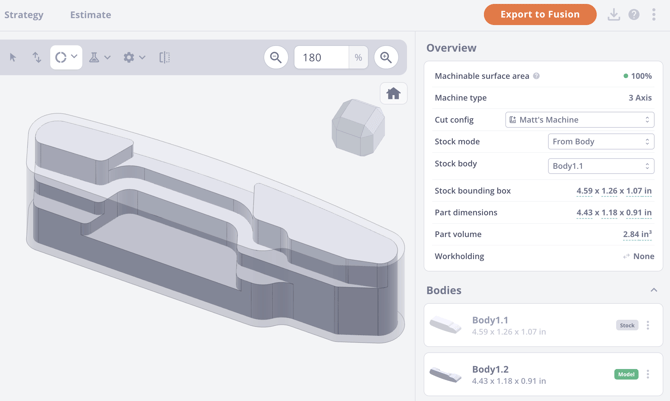
SelectFrom Body- which will allow selection of stock geometry in the uploaded file