January 23, 2026
How to Regenerate a Program
Regenerate programs after making changes to Tool Libraries or Cut Configs to update your machinability analysis results
If you make changes to a tool library or Cut Config, Toolpath needs to regenerate existing parts to reflect these changes.
When viewing a part workspace, Toolpath will warn you that a program needs to be regenerated by changing the orange button to "Regenerate", adding an orange "Requires Regeneration" flag on the Overview page, and adding a clock icon to the selected cut config, as shown below:

To regenerate the program from inside the part workspace, click the orange "Regenerate" button.
To force regeneration of a part that does not show the need for regeneration, click the 3-dot menu in the upper right hand corner and select "Regenerate":

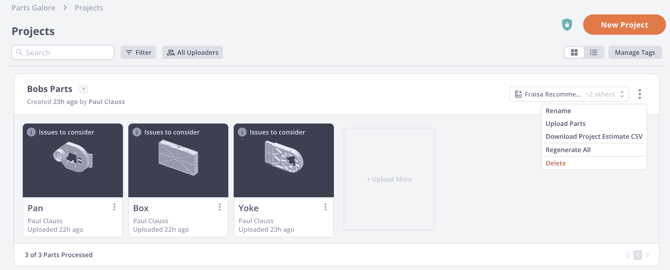
To regenerate a group of parts simultaneously after making a change to a Cut Config, regenerate the entire project through the Projects page. Click the 3-dot menu at the top right of the project card and select "Regenerate All":